Install GoBackload in under a minute
This page walks you through the fastest way to add GoBackload to your Android phone, iPhone, or iPad, with the right instructions for your device.
Ready to set up?
If you are on Android and your browser supports app install, the install button below will appear below.
On iPhone or iPad, use Safari and follow the step-by-step guide further down.
GoBackload is already installed on this device
We have detected the app is already running in installed mode.
Use the device-specific tips below to open it again or place the icon back on your home screen.
- Faster access from your home screen
- Full-screen app experience
- Notifications and login shortcuts stay in one place

GoBackload app
Keep freight tools one tap away.
Android
Best in Chrome, Samsung Internet, Edge, and other modern Android browsers.
Fastest option
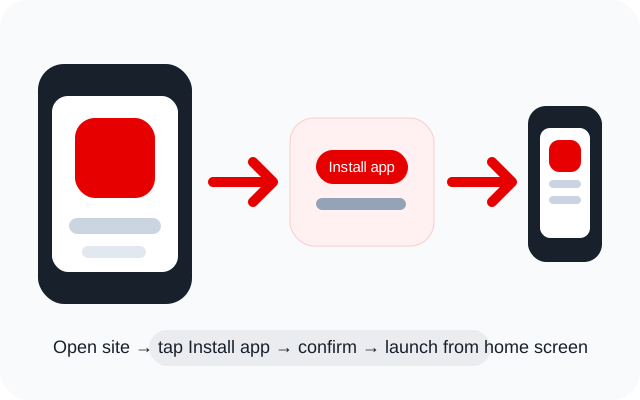
Tap the install button when it appears. That uses Android's normal app-install prompt and adds GoBackload like an app.
If the install button does not appear
Open your browser menu and look for Install app or Add to Home screen, then confirm.
- 1
Open GoBackload in your normal Android browser
Chrome is the most reliable option for web app install prompts.
- 2
Watch for the install prompt
If your browser supports it, the red install button on this page will light up automatically.
- 3
Confirm the install
Android will add GoBackload to your app drawer and usually place it on your home screen as well.
- 4
Already installed?
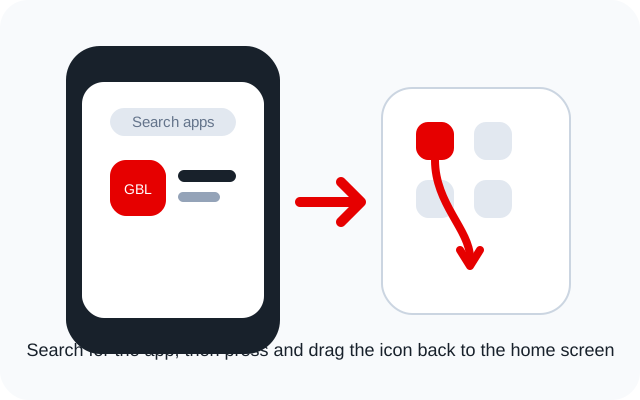
Swipe up to open your app drawer, search for GoBackload, then press and hold the icon to drag it back onto your home screen.
iPhone and iPad
Use Safari for the cleanest install flow on iOS and iPadOS.
Important for Apple devices
Install works best from Safari. If you opened this page inside another browser, tap the share icon there and choose Open in Safari first.
- 1
Open this page in Safari
Safari is required for the Add to Home Screen option on iPhone and iPad.
- 2
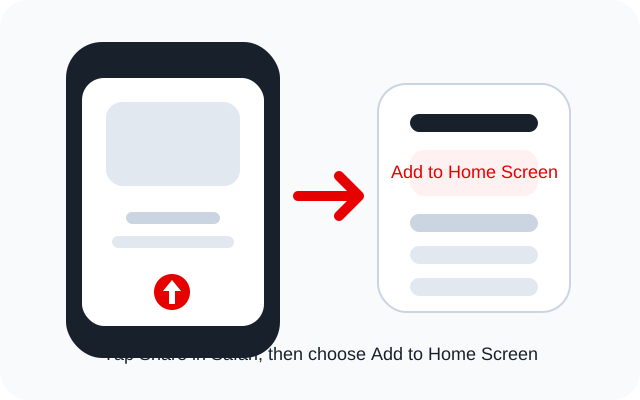
Tap the Share button
Tap the share icon
 in the toolbar.
 - 3
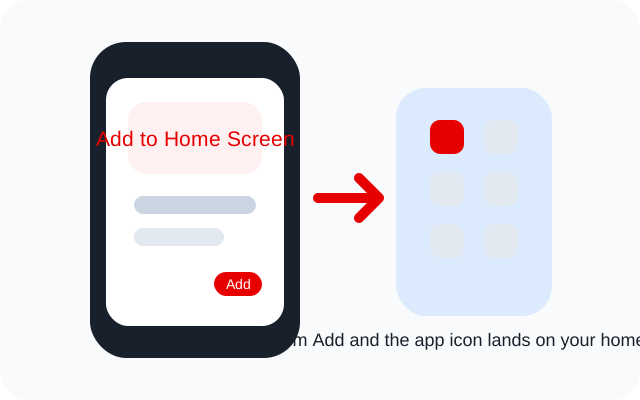
Choose Add to Home Screen
Scroll the actions list if needed, then tap Add to Home Screen.
- 4
Tap Add
Confirm the icon name, tap Add, and GoBackload will appear on your home screen like an app.
- 5
Already installed?
Swipe down on the home screen and search for GoBackload. If you use App Library, keep swiping left to the last page, then press and drag the icon back to the home screen.
Open the app later on Android
If you do not see the GoBackload icon straight away, open your app drawer and search for it. From there, press and hold the icon to place it back on your home screen.
Open the app later on iPhone or iPad
Search for GoBackload from the home screen, or open the App Library on the last screen. Press and hold the icon, then drag it onto your preferred home screen page.